
To remove spaces, you can use the function =TRIM( Text ). This function removes all spaces from a text, except for single spaces between words. So a text like:
Many spaces text
(Note the spaces at the start and end of the text)
Will become:
Many spaces text
To remove every single space, you can use =SUBSTITUTE( Text , ” “ , ”” ). This will simply remove every space from a given text.
You can remove line breaks with the function =CLEAN( Text ).
To replace line breaks with a different character, like a space, you can use the Substitute function again. =SUBSTITUTE( Text , CHAR(10) , ” “ ) will substitute line breaks for spaces in the given text. CHAR(10) in the above function is the ASCII (internal character representation) value of the new line.
More on removing spaces
Syntax
Here are the syntaxes of the functions you may need:
=TRIM( Text ) Removes every space from a text except for single spaces between words.=CLEAN( Text ) Removes line breaks and non-printable characters.=SUBSTITUTE( Text , Old text , New text , [ Instance num ]) Substitutes any occurrences of Old text in Text with New text.
Alternative: using Find and Replace to remove spaces
We can make Excel search for any double spaces ” ” and replace them by single spaces ” “. This will reduce any group of spaces to a single space. A drawback of this method is that it will only reduce leading and trailing spaces to a single space instead of completely removing them.
- Open the Find and Replace window by clicking on Find & Select on the Home tab of the Ribbon and then Replace… in the dropdown that shows. Alternatively, you can press Ctrl + H (Windows) or ⌘Command + H (Mac) to open the window.
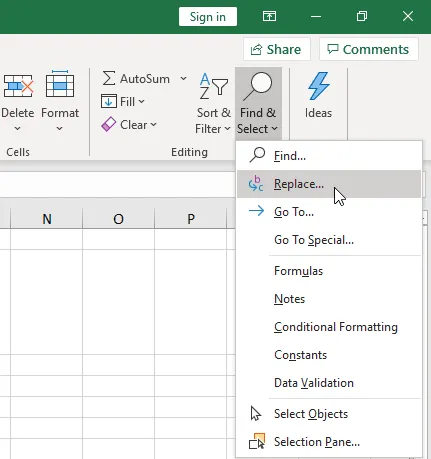
Opening the Find and Replace window by clicking on Find & Select and then Replace… in the dropdown.
- In the Find and Replace window put 2 spaces in the Find what: field and 1 space in the Replace with: field.
- Click on Replace All and press OK on the popup.
- Keep clicking Replace All and pressing OK until no more double spaces can be found.
How do you create line breaks?
We’ve talked about removing line breaks in the video. But before removing line breaks, you have to create them first.
You can create a line break by pressing Alt + Enter in a cell.
We talk about another method of removing line breaks in our Find and Replace blog post.
That’s it
Did we help you with removing spaces from your workbook? Do you have other techniques to remove spaces in Excel? Let us know in the comments.